License activation
Turn on Pro in the extension.
Use this guide after checkout or whenever you already have an Internet Health Check license key. The highlighted areas show exactly where to click, paste, and confirm.
1
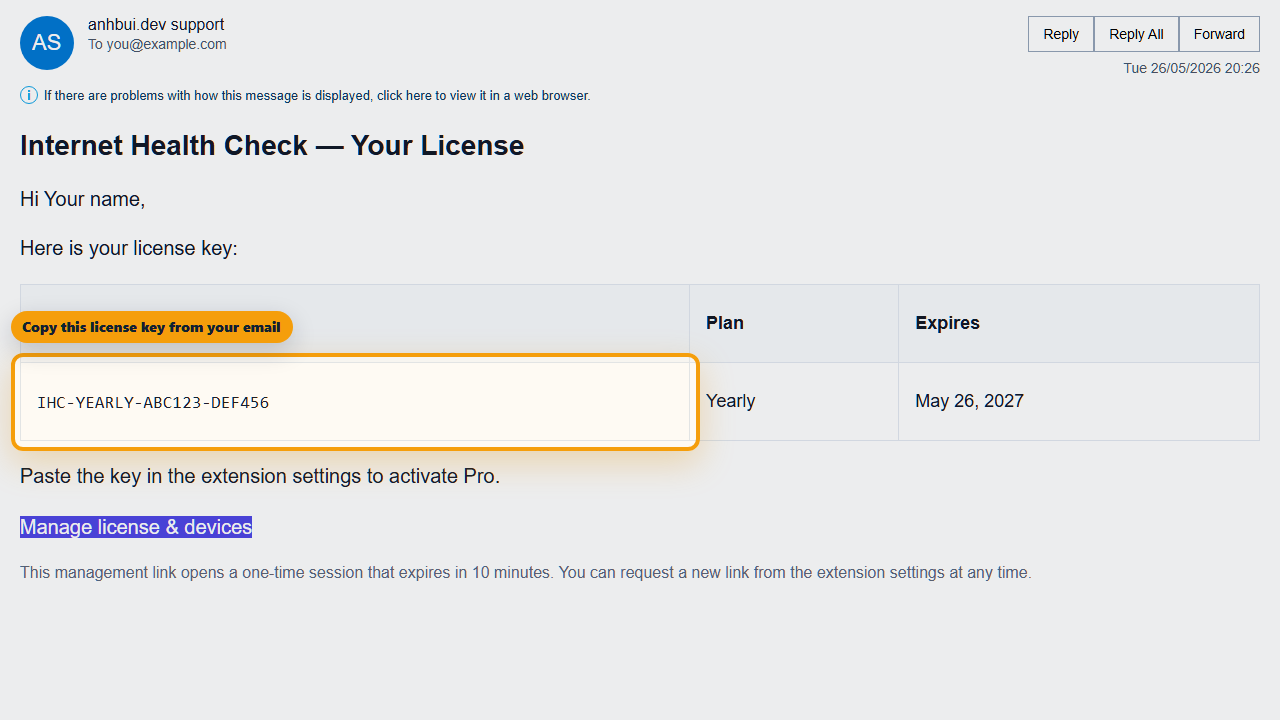
Copy your license key
Open the license email sent after purchase and copy the full key from the Key column.
2
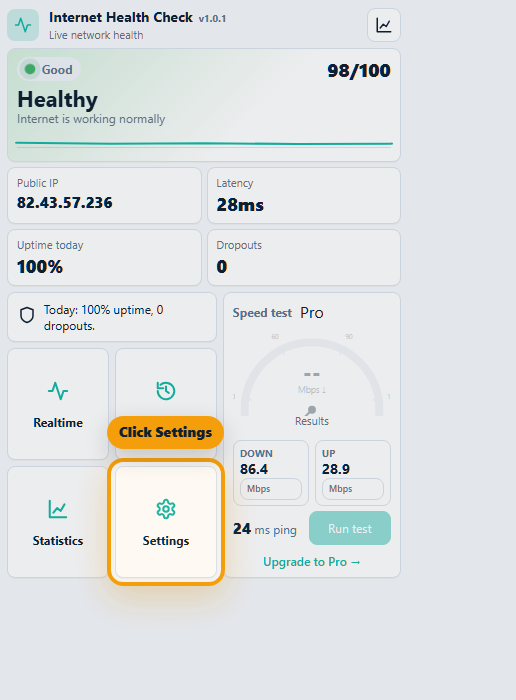
Open Settings in the extension
Click the Internet Health Check icon in your browser toolbar, then select the Settings tile in the popup.
3
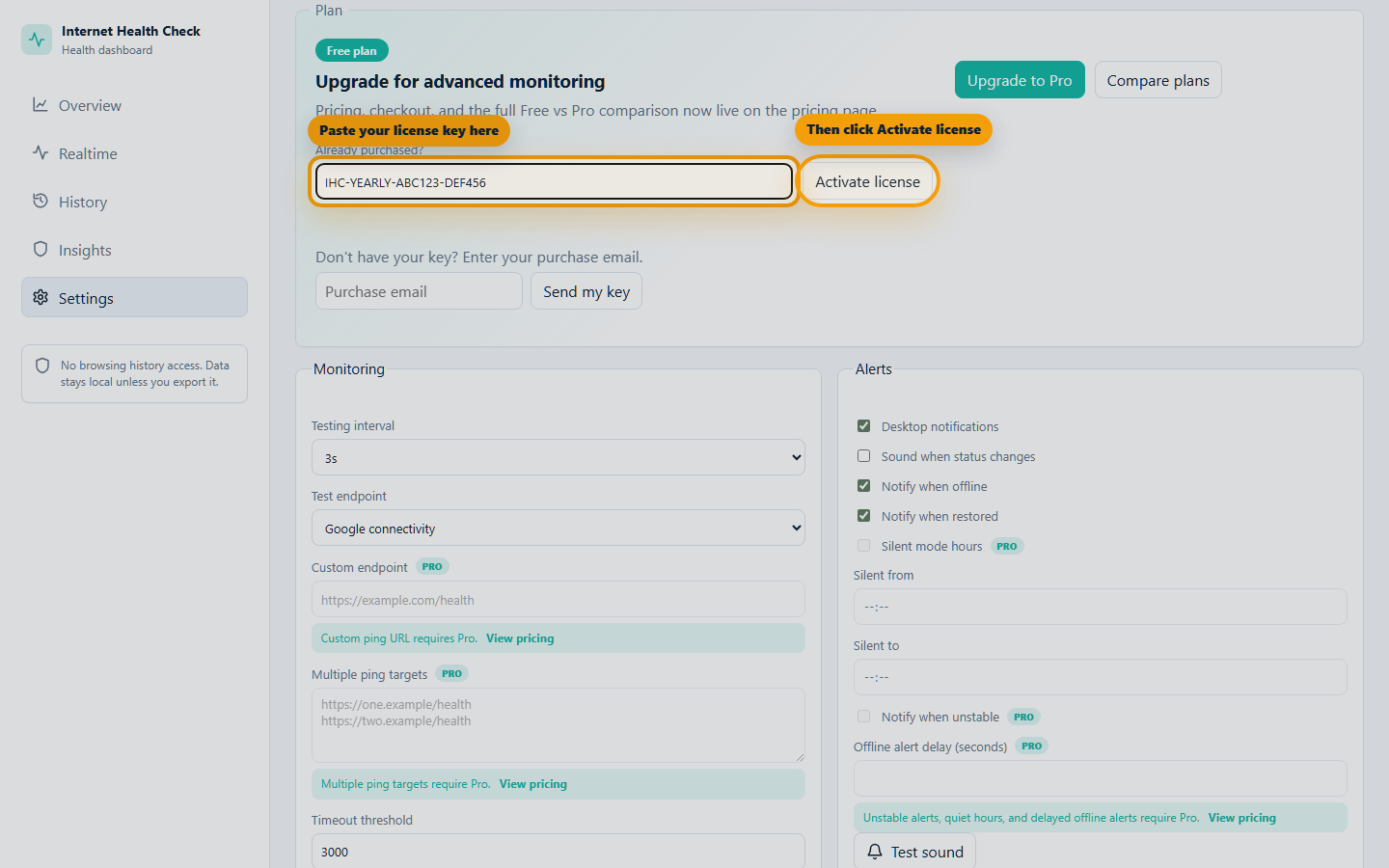
Paste and activate
In the Plan section, paste the license key into the Already purchased field, then press Activate license. Keep the tab open until the success message appears.
4
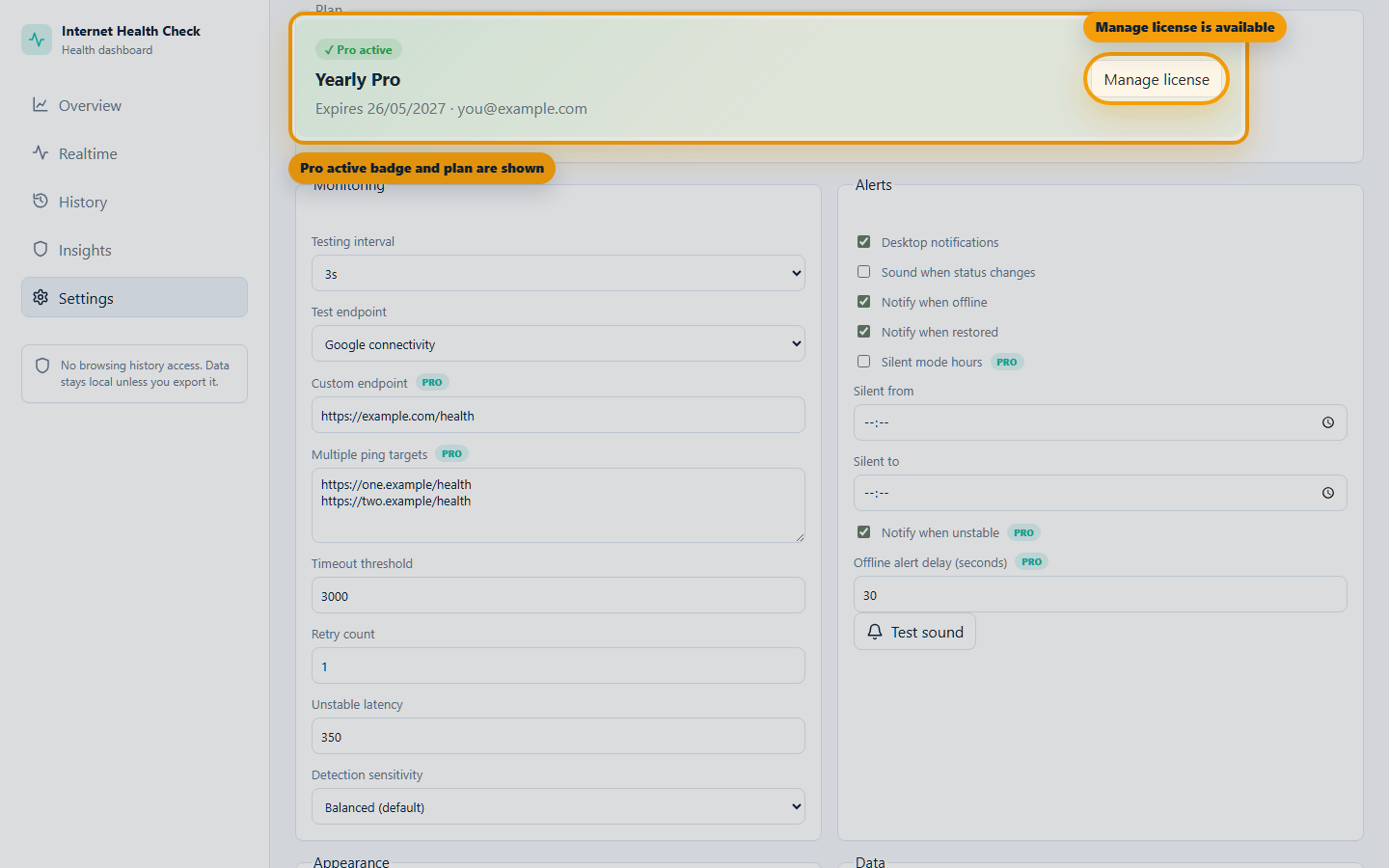
Confirm Pro is active
After the dashboard refreshes, check for the Pro active badge, your Pro plan name, and the Manage license button in the Plan section.
Need help?
Activation checklist
- License keys always start with
IHC-. - Paste the whole key, including every dash.
- Use the same browser profile where you want Pro enabled.
- After activation, look for Pro active, your Pro plan, and Manage license in Settings.
- If the license is already active on too many devices, manage or revoke an old device from the license email link.